
Dependencies for your Python Package#
In the pyproject.toml overview page,
you learned how to set up a pyproject.toml file with basic metadata
for your package. On this page, you will learn how to specify different types of
dependencies in your pyproject.toml.
What is a package dependency?#
A Python package dependency refers to an external package or a tool that is needed
when using or working on your Python project. Declare your dependencies in
your pyproject.toml file. This keeps all package metadata in one place, making
it simpler for users and contributors to understand your package.
Older ways to declare dependencies
While pyproject.toml is now the standard, you may sometimes encounter older approaches to storing dependencies “in the wild”:
requirements.txt: Previously common for dependencies, still used by some projects for local development
setup.py or setup.cfg: May be needed for packages with extensions in other languages
Why specify dependencies#
Specifying dependencies in the project.dependencies array of your pyproject.toml file ensures that libraries needed to run your package are correctly installed into a user’s environment.
For instance, if your package requires pandas to run properly, and you add pandas to the project.dependencies array, pandas will be installed into the user’s environment when they install your package using uv, pip, or conda.
[project]
...
...
...
dependencies = [
    "dependency-package-name-1",
    "dependency-package-name-2",
    "pandas",
    "xarray",
    "geopandas",
    "matplotlib"
]
Development dependencies make it easier for contributors to work on your package. You can set up instructions for running specific workflows, such as tests, linting, and even typing, that automatically install groups of development dependencies. These dependencies can be stored in arrays (lists of dependencies) within a [dependency-groups] table.
[dependency-groups]
test = [
    "pytest",
    "pytest-cov"
]
Types of dependencies#
There are three different types of dependencies that you will learn about on this page:
Required dependencies: These are dependencies that need to be installed for your package to work correctly in a user’s environment. You add these dependencies to the
project.dependenciestable in your pyproject.toml file.Feature Dependencies: These are dependencies that are required if a user wants to access additional functionality (that is not core) to your package. Store these in the
[project.optional-dependencies]of your pyproject.toml file.Development Dependencies: These dependencies are required if someone wants to develop or work on your package. Linters and testing tools such as pytest and mypy are examples of development dependencies. Store these in the
[dependency-groups]table of your pyproject.toml file.
Tip
A dependency is not part of your project’s codebase. It is a package or software called within the code of your project or used during the development of your package.
1. Required dependencies#
Required dependencies are imported and called directly within your package’s code. They are needed for your package to run.
You can add your required dependencies to the dependencies array in the
[project] table of your pyproject.toml file. When users install
your package with uv, pip, or conda, these dependencies will be
automatically installed alongside your package in their environment.
[project]
...
...
...
dependencies = [
    "dependency-package-name-1",
    "dependency-package-name-2",
    "pandas",
    "xarray",
    "geopandas",
    "matplotlib"
]
Tip
Try your best to minimize dependencies whenever possible. Remember that fewer dependencies reduce the possibility of version conflicts in user environments.
How to Add Required Dependencies with UV
You can use uv to add dependencies to your pyproject.toml file:
Add a required dependency:
uv add numpy
Will add numpy as a dependency to your project.dependencies array:
[project]

dependencies = [
    "numpy>=2.2.6",
]
Requiring packages from GitHub / Gitlab
If you have dependencies that need to be installed directly from GitHub, you can specify them in your pyproject.toml file like this:
dependencies = [
"my_dependency >= 1.0.1 @ git+https://git.server.example.com/mydependency.git@commitHashHere"
]
IMPORTANT: If your library depends on a GitHub-hosted project, you should point to a specific commit/tag/hash of that repository before you upload your project to PyPI. You never know how the project might change over time. Commit hashes are more reliable as they can’t be changed
2. Optional dependencies#
Optional (also referred to as feature) dependencies can be installed by users as needed. Optional dependencies add specific features to your package that not all users need. For example, if your package has an optional interactive plotting feature that uses Bokeh, you would list Bokeh under [project.optional-dependencies]. Users who want interactive plotting will install it. Users who don’t need plotting don’t have to install it.
Place these dependencies in the [project.optional-dependencies] table.
[project]
...
...
...
[project.optional-dependencies]
plot = ["bokeh"]
When a user installs your package, uv, pip, or conda automatically installs all required dependencies. Optional dependencies are only installed if the user explicitly requests them.
How to Add Optional Dependencies Using UV
You can use uv to add dependencies to your pyproject.toml file:
Add an optional dependency:
uv add --optional feature pandas
Will add this to your pyproject.toml file:
[project.optional-dependencies]
feature = [
    "pandas>=2.3.3",
]
3. Dependency groups#
Development dependencies include packages needed to work on your package locally. They are used to perform tasks such as:
running your test suite (pytest, pytest-cov)
building your documentation (sphinx, sphinx-theme packages)
linting and formatting code (ruff, black)
building package distribution files (build, twine)
Dependency groups are optional because they are not required for users to install and use your package. However, they will make it easier for contributors to your project to set up development environments locally.
New: PEP 735 dependency groups
[dependency-groups] is a newer specification introduced by PEP 735.
They are intended to organize development dependencies and are intentionally separate from [project.optional-dependencies], which can be installed into a user’s environment.
How to declare dependency groups#
You declare development dependencies in your pyproject.toml file
within a [dependency-groups] table.
Similar to optional-dependencies, you can create separate subgroups or arrays with names using the syntax: group-name = ["dep1", "dep2"]
[dependency-groups]
test = [
    "pytest",
    "pytest-cov"
]

lint = [
    "black",
    "flake8",
    "ruff"
]

docs = [
    "sphinx",
    "pydata-sphinx-theme"
]

dev = [
    {include-group = "test"},
    {include-group = "lint"}
]
How to Add [dependency-groups] using UV
You can use uv to add dependencies to your pyproject.toml file:
Add a development dependency group:
uv add --group tests pytest
uv add --group docs sphinx
Will add the following to your pyproject.toml file:
[dependency-groups]
tests = [
    "pytest>=8.4.2",
]
docs = [
    "sphinx>=8.1.3",
]
Understanding required vs. optional dependencies#
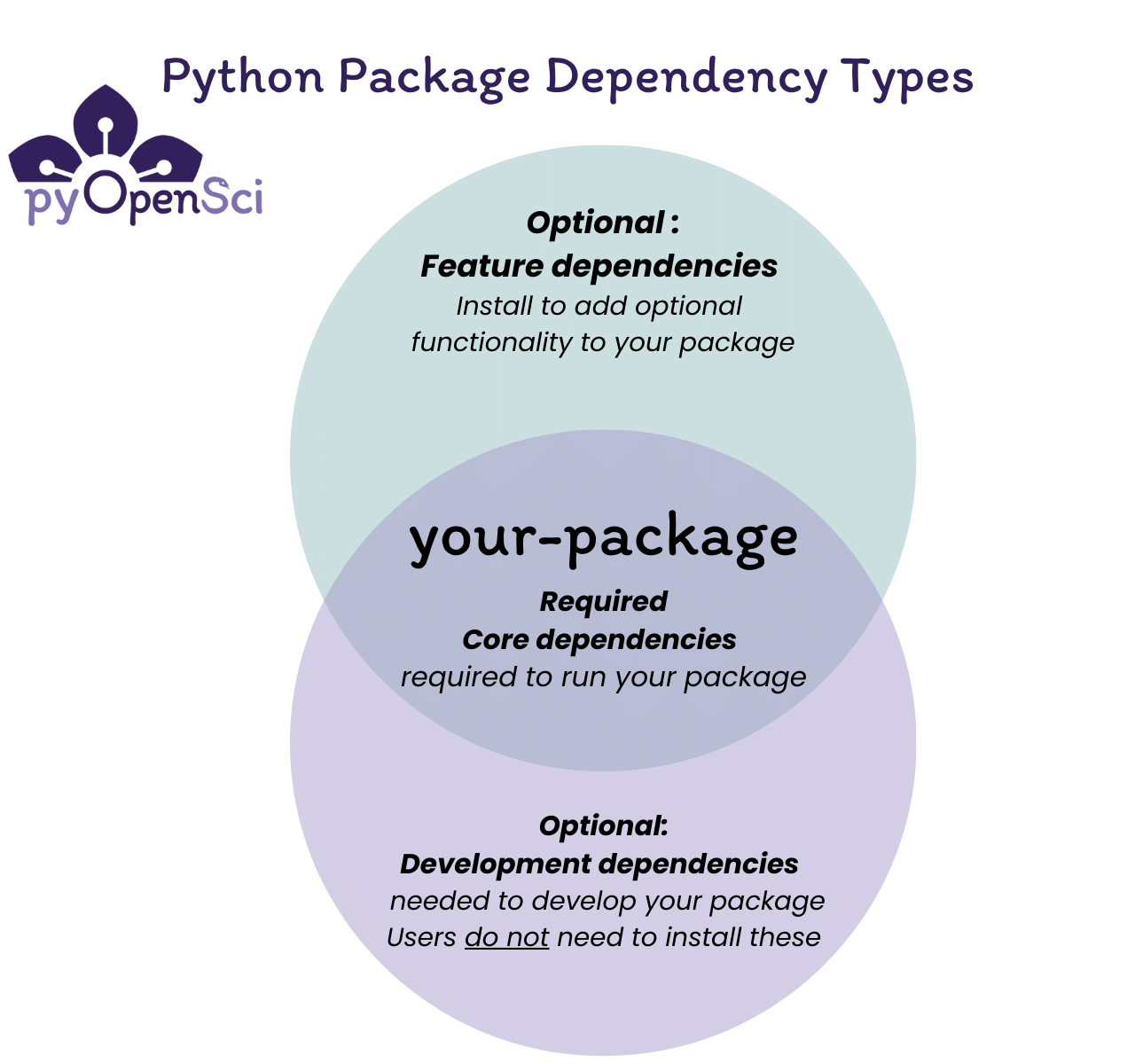
Python package dependencies fall into two categories: required dependencies that users need to run your package, and optional dependencies for development work or additional features.#
Additional dependency resources
Install dependency groups#
When someone installs your package, only core dependencies are installed by default. To install optional dependencies, you need to specify which groups to include when installing the package.
![Diagram showing a Venn diagram with three sections representing dependency groups - docs, feature, and tests. In the center it shows your-package with core dependencies seaborn and numpy. Two arrows on the right demonstrate: first, python -m pip install your-package installs only the package and core dependencies. Second, python -m pip install your-package[tests] installs the package, core dependencies, and test dependencies including pytest and pytest-cov.](../_images/python-package-dependencies.png)
When a user installs your package using pip install your-package, only
your package and its core dependencies get installed. When they install
with pip install your-package[tests], pip will install your package,
core dependencies, and the test dependencies from the
[project.optional-dependencies] field.#
Using uv or pip for installation#
UV streamlines this process, allowing you to sync a venv in your project directory with both an editable install of your package and its dependencies automatically. You can also use pip and install dependencies into the environment of your choice.
Install dependency groups:
You can use uv sync to sync dependency groups in your uv-managed venv
uv sync --group docs                     # Single group
uv sync --group docs --group test        # Multiple groups
uv sync --all-groups                     # All dependency groups
Tip
use --active with uv sync to prefer the currently active virtual environment over the project’s own managed environment:
$ uv sync --active --group docs
Install optional dependencies:
# uv pip install is not ideal if you are using uv supported venvs for your project
$ uv pip install -e ".[docs]"              # Single group
$ uv pip install -e ".[docs,tests,lint]"   # Multiple groups
Tip
Use the --active flag with uv run to prefer the currently active
virtual environment over the project’s own managed environment:
$ uv run --active pip install -e ".[docs]"
This is useful when you have activated a virtual environment and want
uv run to use it instead of automatically creating or selecting the
project’s environment.
Install everything (package + all dependencies):
uv sync --all-extras --all-groups
uv sync is the recommended command for development workflows. It
manages your virtual environment and keeps your lockfile up to date.
Use uv pip install when you need pip-compatible behavior.
Install optional dependencies:
python -m pip install -e ".[docs]"              # Single group
python -m pip install -e ".[docs,tests,lint]"   # Multiple groups
Install dependency groups:
python -m pip install --group test              # Single group
python -m pip install --group docs   # Multiple groups
Always call pip using python -m pip to ensure you’re using
the pip from your current active Python environment. This helps avoid
installation conflicts.
Note: Some shells (like zsh on Mac) require quotes around brackets to run successfully:
python -m pip install ".[tests]"
Combining dependency groups#
You can also create combined groups that reference other groups:
[project.optional-dependencies]
plot = ["bokeh"]
test = ["pytest", "pytest-cov"]
docs = ["sphinx", "pydata-sphinx-theme"]
Then install everything with pip install or uv sync as needed:
uv pip install -e ".[dev]"
# or
python -m pip install ".[dev]"
Tip
When you install optional dependencies, pip and uv install your package and its core dependencies automatically.
Version specifiers for dependencies#
Version specifiers control which versions of a dependency work with your package. Use them to specify minimum versions, exclude buggy releases, or set version ranges.
Common operators#
>=Minimum version set:numpy>=1.20(This is the most common approach and is recommended)==Exact version:requests==2.28.0(Avoid pinning dependencies like this unless necessary)~=Compatible release:django~=4.2.0(Allows patches: >=4.2.0,<4.3.0)<or>- Upper/lower bounds:pandas>=1.0,<3.0!=Exclude version:scipy>=1.7,!=1.8.0(Rare but allows you to skip a buggy release version)
Tip
Best practice: Use >= to specify your minimum tested version and
avoid upper bounds unless you know at what version that dependency is no longer compatible. UV will do this by
default when it adds a dependency to your pyproject.toml file. This keeps
your package flexible and reduces dependency conflicts.
dependencies = [
    "numpy>=1.20",              # Good - flexible
    "pandas>=1.0,<3.0",         # OK - known breaking change in 3.0
    "requests==2.28.0",         # Avoid - too restrictive
]
The pyproject.toml file works great for pure-Python packages. However,
some packages (particularly in the scientific Python ecosystem) require
dependencies written in other languages like C or Fortran. Conda was
created to support the distribution of tools with non-Python dependencies.
For conda users:
You can maintain an environment.yml file to help users and contributors
set up conda environments. This is especially useful for packages with
system-level dependencies like GDAL.
Consider Pixi for conda package focused workflows:
Pixi is a modern package manager built on top of both
the conda and Python package ecosystems.
Pixi is able to treat conda and Python package requirements with parity when
resolving environments, but uses a “conda-first” approach of using already
resolved conda packages if possible when resolving Python dependencies.
Pixi can also use pyproject.toml for configuration.
If your project relies heavily on conda packages, Pixi offers a streamlined
workflow with faster dependency resolution and automatic lock file support for
full environment reproducibility.
If you already have an existing conda environment definition file, like
an environment.yml, you can
import the environment into a new
Pixi workspace with
pixi init --import environment.yml
A note for conda users
If you use a conda environment for development and install your package
with python -m pip install -e . dependencies will be installed from PyPI,
potentially overwriting conda packages that had already been installed.
This can cause conflicts, especially for packages with system dependencies.
To avoid this, install your package without dependencies:
python -m pip install -e . --no-deps
Then install dependencies through your conda environment.yml file.
Dependencies in Read the Docs#
Once you’ve specified dependencies in your pyproject.toml, you can use
them in other workflows like building documentation on Read the Docs.
Read the Docs is a documentation platform that automatically builds and publishes your documentation. To install your dependencies during the build process, configure them in a readthedocs.yaml file.
Here’s an example that installs your docs optional dependencies:
python:
  install:
    - method: pip
      path: .
      extra_requirements:
        - docs
Learn more about Read the Docs
Dependency Locking#
In addition to declaring dependencies in pyproject.toml, it is common for
packages to lock down exact versions of all their dependencies in a separate
lock file. A lock file provides benefits of reproducibility, security, and
potentially faster installs, among other things. Pinning the exact dependency
versions used in a project eliminates “works on my machine” bugs and gives CI a
reproducible baseline. For applications meant to be run rather than imported,
lock files also ensure anyone installing the project gets a known-good set of
dependencies instead of whatever happens to be latest.
pyproject.toml vs lock file#
pyproject.toml: defines all environments you intend to support for users importing your package into their project.lock file: defines a specific environment used for development
pyproject.toml should be permissive, erring on the side of allowing too much
even if it may allow untested environments. In most cases, it is better that
users install your package but encounter an issue rather than being restricted
from installing your package by the pyproject.toml when it would otherwise
work.
A lock file is the opposite. If it installs, the resulting environment should work even if this means some valid environments are excluded.
Standardized Lock File
As of March 2025, PEP 751 defined a standard
pylock.toml format to unify the various lock file formats in use by other
package managers (e.g. uv.lock, poetry.lock, pdm.lock). Most package
managers provide ways to generate a PEP 751 compatible file. See PyPA
specification
for up-to-date formatting info on pylock.toml
How to work with lock files?#
Lock files are not written by hand. Package managers and IDEs provide tools to create, update, and reformat lock files as needed.
Create - Package managers often do this automatically though it can be done manually. For example, calling
uv add numpywill automatically create auv.lockfile, setup the environment, and install numpy.Update - This is not done automatically by package managers. Maintainers can choose to do this manually or setup their own automated workflow. Updates can be for specific packages or all dependencies.
Reformat - Package managers currently use native formats (e.g. uv uses
uv.lock) and provide tools for converting intopylock.tomland other formats (e.g.requirements.txt) when needed
Below is the uv CLI workflow for lock files:
# Create a uv.lock file based on pyproject.toml
> uv lock

# Update uv.lock
> uv lock --upgrade
> uv lock --upgrade-package pandas

# Install packages into environment based on uv.lock
> uv sync

# PEP 751 pylock.toml support
> uv export --format pylock.toml -o pylock.toml # export uv.lock -> pylock.toml
> uv pip sync pylock.toml                       # install from pylock.toml
See official docs for more details. See also the relevant docs for Poetry and PDM.
Should I use a lock file?#
Most package managers will generate a lock file automatically for you (e.g. uv, Poetry, PDM). The real question is when you version control the lock file as part of your package.
Recommendation: Versioning a lock file
If your project is an application others use directly, include a lock file as the recommended environment.
If your project is a library to be used in other projects and it is mature enough to have CI, include a lock file for CI and contributors. For a small library only you maintain that is shared amongst people you know, waiting to add a lock file is not an issue. In general, you should version the lock file.
For private libraries shared within a team, a lock file is less important. But if the project is an application or tool that others run directly, instead of importing into their code, committing the lock file is generally the most convenient choice. It gives users a reproducible set of dependencies instead of having each user resolve from pyproject.toml.
Recommendation: Which format to version control
Version control the standard pylock.toml format.
There is some maintenance cost from lock files. Maintainers should aim to update the lock file neither too rarely nor too often.
Too rarely means you risk missing updates with bugfixes, security patches, performance improvements, etc.
Too often means you may introduce bugs or even security vulnerabilities before maintainers of your dependencies catch them. Package managers are starting to support dependency cooldowns to mitigate this.
Recommendation: Updating a lock file
Update lock files frequently (e.g. weekly) but configure a dependency cooldown of several days to avoid automatically installing the latest packages. Only override the cooldown if a new package has a needed bug fix or security patch.
Dependency cooldowns
Dependency cooldowns are strongly encouraged by security experts to avoid automatically downloading the latest package updates that may have been compromised with malware. Package manager tools are starting to support configurations for cooldowns
> uv lock --exclude-newer "3 days"`
or in pyproject.toml
[tool.uv]
exclude-newer = "3 days"
Integrating cooldown constrained lock files into CI is important since this is
where new packages are commonly tested first. Automated testing code that
resolves [project.dependencies] every time
> python -m pip install .
can be replaced with lock file based installations
> uv pip sync pylock.toml
after pylock.toml has been added to the project.
> uv lock --exclude-newer "3 days"`
> uv export --format pylock.toml -o pylock.toml
Support for this varies across automated testing frameworks (e.g. hatch, nox) so consult their documentation for how to install dependencies from lock files with dependency cooldowns.
When you decide to update a lock file, make sure to test that the resulting
environment works before committing. If it fails because of some dependency
update, then it may be necessary to update pyproject.toml to cap the supported
versions of that dependency unless/until the code can be updated to support it.
It can also be good, though not necessary, to double check what changed when updating a lock file. The diff can be noisy so the main changes to focus on are
major version updates (e.g.
pandas 2.X.X->pandas 3.X.X)new transitive dependencies (i.e. not part of your
pyproject.toml)
Tip
A lock file captures one environment for CI testing, not the full compatibility
range declared in pyproject.toml. Projects that use lock files may want to
have CI test other environments such as
the latest packages consistent with your
pyproject.toml, subject to dependency cooldowns. This lets you know if a dependency update breaks your package.older supported versions of Python to let you know if a recent change to your package no longer works with an older Python release.
What about requirements.txt
Older approaches to locking used pip freeze to generate a requirements.txt
that got used as a lock file. These are minimal lock files that pin a specific
version for the system on which the command was run. They might look like
# requirements.txt
numpy==2.4.6
plotly==6.7.0
pyzmq==27.1.0
However, this minimal level of specificity has several downsides making lock files the preferred format:
The versions satisfying
pyproject.tomlmay differ between your Windows laptop and the Linux server your CI runs on. A single lock file contains the information needed to build platform specific and Python version specific environments. In contrast, a separaterequirements.txtfiles is needed to store this information (e.g.requirements.ci.txt,requirements.py313-macos.txt)Packages can get updated without a version update for both legitimate and malicious reasons. Lock files include package hashes to catch this. A hash is a unique signature computed from the code and any change to the code will cause the release to have a different hash even if is given the same release version number.
Other metadata determined during resolution of
pyproject.toml(e.g. which dependencies are transitive, where the packages were downloaded from, etc.) that can help speed up future installs is lost.