Dependencies for your Python Package#
pyproject.tomlの概要ページ では、パッケージの基本的なメタデータを持つ pyproject.toml ファイルをセットアップする方法を学びました。 このページでは、 pyproject.toml で異なるタイプの依存関係を指定する方法を学びます。
パッケージ依存性とは何か?#
A Python package dependency refers to an external package or a tool that is needed
when using or working on your Python project. Declare your dependencies in
your pyproject.toml file. This keeps all package metadata in one place, making
it simpler for users and contributors to understand your package.
Older ways to declare dependencies
現在では「pyproject.toml」が標準ですが、依存関係を「そのまま」保存するための古いアプローチに遭遇する場合があります。
requirements.txt: 以前は依存関係に一般的でしたが、現在でもローカル開発の一部のプロジェクトで使用されています
setup.py or setup.cfg: May be needed for packages with extensions in other languages
Why specify dependencies#
Specifying dependencies in the project.dependencies array of your pyproject.toml file ensures that libraries needed to run your package are correctly installed into a user's environment.
For instance, if your package requires pandas to run properly, and you add pandas to the project.dependencies array, pandas will be installed into the user's environment when they install your package using uv, pip, or conda.
[project]
...
...
...
dependencies = [
    "dependency-package-name-1",
    "dependency-package-name-2",
    "pandas",
    "xarray",
    "geopandas",
    "matplotlib"
]
開発の依存関係により、コントリビューターがパッケージで作業しやすくなります。テスト、lint、さらには入力など、開発依存関係のグループを自動的にインストールする特定のワークフローを実行するための手順を設定できます。これらの依存関係は、[dependency-groups] テーブル内の配列 (依存関係のリスト) に保存できます。
[dependency-groups]
test = [
    "pytest",
    "pytest-cov"
]
Types of dependencies#
このページでは、次の 3 つの異なるタイプの依存関係について説明します。
必須の依存関係: これらは、パッケージがユーザーの環境で正しく動作するためにインストールする必要がある依存関係です。これらの依存関係を pyproject.toml ファイルの
project.dependencyテーブルに追加します。Feature Dependencies: These are dependencies that are required if a user wants to access additional functionality (that is not core) to your package. Store these in the
[project.optional-dependencies]of your pyproject.toml file.Development Dependencies: These dependencies are required if someone wants to develop or work on your package. Linters and testing tools such as pytest and mypy are examples of development dependencies. Store these in the
[dependency-groups]table of your pyproject.toml file.
Tip
A dependency is not part of your project's codebase. It is a package or software called within the code of your project or used during the development of your package.
1. Required dependencies#
必要な依存関係はインポートされ、パッケージのコード内で直接呼び出されます。これらはパッケージを実行するために必要です。
必要な依存関係を、pyproject.toml ファイルの [project] テーブルの dependency 配列に追加できます。ユーザーが uv、pip、または conda を使用してパッケージをインストールすると、これらの依存関係は、パッケージと一緒に環境に自動的にインストールされます。
[project]
...
...
...
dependencies = [
    "dependency-package-name-1",
    "dependency-package-name-2",
    "pandas",
    "xarray",
    "geopandas",
    "matplotlib"
]
Tip
Try your best to minimize dependencies whenever possible. Remember that fewer dependencies reduce the possibility of version conflicts in user environments.
How to Add Required Dependencies with UV
You can use uv to add dependencies to your pyproject.toml file:
必要な依存関係を追加します:
uv add numpy
numpy を依存関係として project.dependency 配列に追加します。
[project]

dependencies = [
    "numpy>=2.2.6",
]
Requiring packages from GitHub / Gitlab
If you have dependencies that need to be installed directly from GitHub, you can specify them in your pyproject.toml file like this:
dependencies = [
"my_dependency >= 1.0.1 @ git+https://git.server.example.com/mydependency.git@commitHashHere"
]
IMPORTANT: If your library depends on a GitHub-hosted project, you should point to a specific commit/tag/hash of that repository before you upload your project to PyPI. You never know how the project might change over time. Commit hashes are more reliable as they can't be changed
2. Optional dependencies#
オプションの (機能とも呼ばれる) 依存関係は、必要に応じてユーザーがインストールできます。オプションの依存関係により、すべてのユーザーが必要とするわけではない特定の機能がパッケージに追加されます。たとえば、パッケージに Bokeh を使用するオプションの対話型プロット機能がある場合、[project.optional-dependency] の下に Bokeh をリストします。インタラクティブなプロットを必要とするユーザーは、それをインストールします。プロットが必要ないユーザーはインストールする必要はありません。
Place these dependencies in the [project.optional-dependencies] table.
[project]
...
...
...
[project.optional-dependencies]
plot = ["bokeh"]
ユーザーがパッケージをインストールすると、uv、pip、または conda によって必要な依存関係がすべて自動的にインストールされます。オプションの依存関係は、ユーザーが明示的に要求した場合にのみインストールされます。
How to Add Optional Dependencies Using UV
You can use uv to add dependencies to your pyproject.toml file:
Add an optional dependency:
uv add --optional feature pandas
Will add this to your pyproject.toml file:
[project.optional-dependencies]
feature = [
    "pandas>=2.3.3",
]
3. Dependency groups#
開発の依存関係には、パッケージをローカルで操作するために必要なパッケージが含まれます。これらは次のようなタスクを実行するために使用されます。
running your test suite (pytest, pytest-cov)
building your documentation (sphinx, sphinx-theme packages)
lint およびフォーマットコード (ruff、black)
パッケージ配布ファイルの構築 (build、twine)
Dependency groups are optional because they are not required for users to install and use your package. However, they will make it easier for contributors to your project to set up development environments locally.
New: PEP 735 dependency groups
[dependency-groups] は、PEP 735 によって導入された新しい仕様です。これらは、開発の依存関係を整理することを目的としており、ユーザーの環境にインストールできる [project.optional-dependency] とは意図的に分離されています。
How to declare dependency groups#
You declare development dependencies in your pyproject.toml file
within a [dependency-groups] table.
オプションの依存関係と同様に、構文 group-name = ["dep1", "dep2"] を使用して、名前を付けて個別のサブグループまたは配列を作成できます。
[dependency-groups]
test = [
    "pytest",
    "pytest-cov"
]

lint = [
    "black",
    "flake8",
    "ruff"
]

docs = [
    "sphinx",
    "pydata-sphinx-theme"
]

dev = [
    {include-group = "test"},
    {include-group = "lint"}
]
UVを使用して[依存関係グループ]を追加する方法
You can use uv to add dependencies to your pyproject.toml file:
開発依存関係グループを追加します:
uv add --group tests pytest
uv add --group docs sphinx
Will add the following to your pyproject.toml file:
[dependency-groups]
tests = [
    "pytest>=8.4.2",
]
docs = [
    "sphinx>=8.1.3",
]
Understanding required vs. optional dependencies#
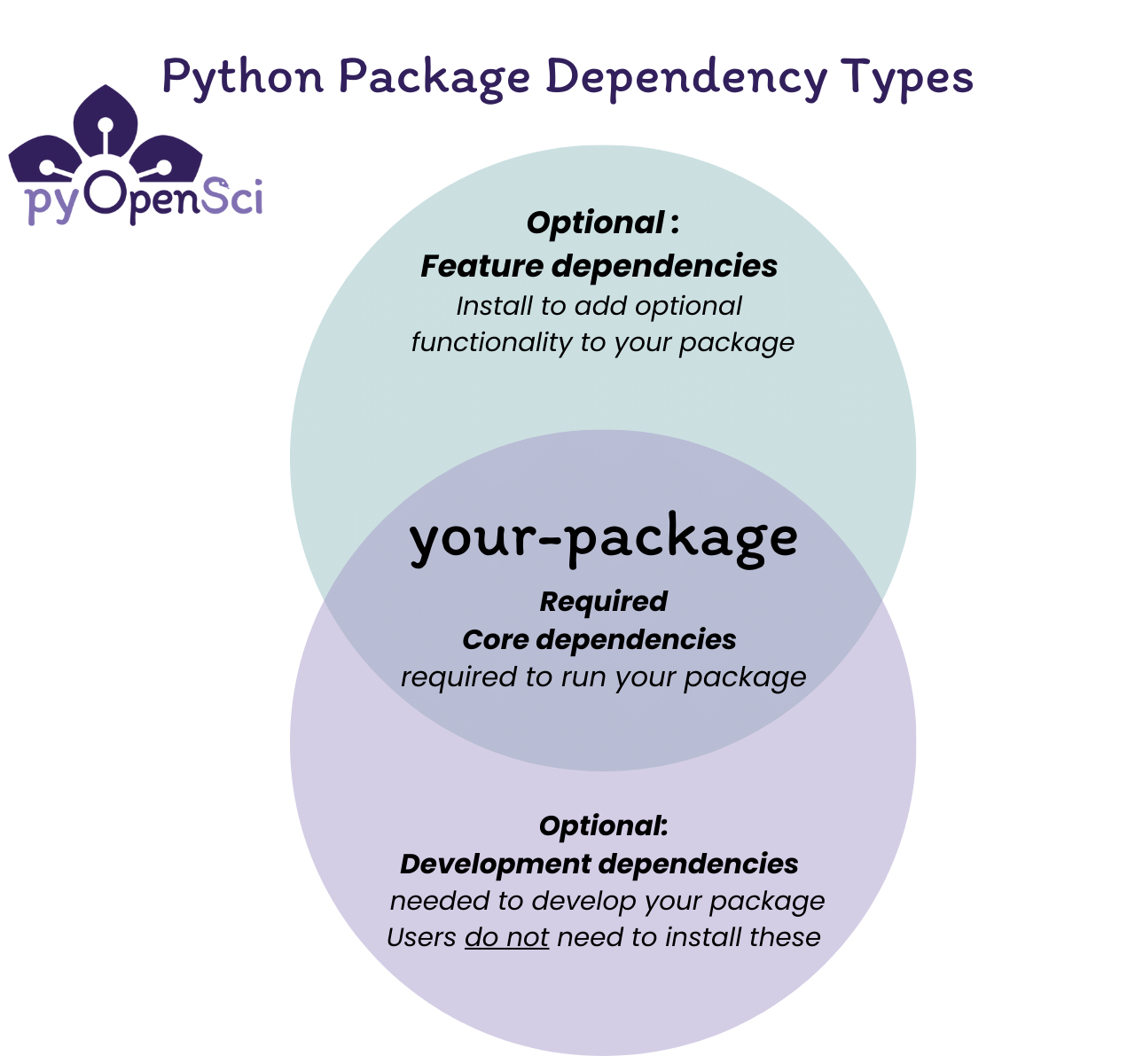
Python パッケージの依存関係は、ユーザーがパッケージを実行するために必要な 必須 依存関係と、開発作業または追加機能用の オプション 依存関係の 2 つのカテゴリに分類されます。#
依存グループをインストールする#
誰かがパッケージをインストールすると、デフォルトではコアの依存関係のみがインストールされます。オプションの依存関係をインストールするには、パッケージのインストール時に含めるグループを指定する必要があります。
![Diagram showing a Venn diagram with three sections representing dependency groups - docs, feature, and tests. In the center it shows your-package with core dependencies seaborn and numpy. Two arrows on the right demonstrate: first, python -m pip install your-package installs only the package and core dependencies. Second, python -m pip install your-package[tests] installs the package, core dependencies, and test dependencies including pytest and pytest-cov.](../_images/python-package-dependencies.png)
When a user installs your package using pip install your-package, only
your package and its core dependencies get installed. When they install
with pip install your-package[tests], pip will install your package,
core dependencies, and the test dependencies from the
[project.optional-dependencies] field.#
インストールに uv または pip を使用する#
UV はこのプロセスを合理化し、プロジェクト ディレクトリ内の venv を、パッケージの編集可能なインストールとその依存関係の両方と自動的に同期できるようにします。 pip を使用して、依存関係を選択した環境にインストールすることもできます。
Install dependency groups:
UV 同期を使用して、UV 管理の venv 内の依存関係グループを同期できます。
uv sync --group docs                     # Single group
uv sync --group docs --group test        # Multiple groups
uv sync --all-groups                     # All dependency groups
Tip
プロジェクト独自の管理環境よりも現在アクティブな仮想環境を優先するには、 --active を uv sync とともに使用します。
$ uv sync --active --group docs
Install optional dependencies:
# uv pip install is not ideal if you are using uv supported venvs for your project
$ uv pip install -e ".[docs]"              # Single group
$ uv pip install -e ".[docs,tests,lint]"   # Multiple groups
Tip
プロジェクト独自の管理環境よりも現在アクティブな仮想環境を優先するには、「uv run」で「--active」フラグを使用します。
$ uv run --active pip install -e ".[docs]"
これは、仮想環境をアクティブ化しており、プロジェクトの環境を自動的に作成または選択する代わりに、「uv run」でそれを使用したい場合に便利です。
Install everything (package + all dependencies):
uv sync --all-extras --all-groups
「uv sync」は開発ワークフローに推奨されるコマンドです。仮想環境を管理し、ロックファイルを最新の状態に保ちます。 pip 互換の動作が必要な場合は、「uv pip install」を使用してください。
Install optional dependencies:
python -m pip install -e ".[docs]"              # Single group
python -m pip install -e ".[docs,tests,lint]"   # Multiple groups
Install dependency groups:
python -m pip install --group test              # Single group
python -m pip install --group docs   # Multiple groups
Always call pip using python -m pip to ensure you're using
the pip from your current active Python environment. This helps avoid
installation conflicts.
注意: 一部のシェル (Mac の zsh など) を正常に実行するには、括弧で囲む必要があります。
python -m pip install ".[tests]"
Combining dependency groups#
他のグループを参照する結合グループを作成することもできます。
[project.optional-dependencies]
plot = ["bokeh"]
test = ["pytest", "pytest-cov"]
docs = ["sphinx", "pydata-sphinx-theme"]
次に、必要に応じて pip install または uv sync を使用してすべてをインストールします。
uv pip install -e ".[dev]"
# or
python -m pip install ".[dev]"
Tip
When you install optional dependencies, pip and uv install your package and its core dependencies automatically.
Version specifiers for dependencies#
バージョン指定子は、パッケージで動作する依存関係のバージョンを制御します。これらを使用して、最小バージョンを指定したり、バグのあるリリースを除外したり、バージョン範囲を設定したりできます。
一般的な演算子#
>=最小バージョンセット:numpy>=1.20(これが最も一般的なアプローチであり、推奨されます)==正確なバージョン:requests==2.28.0(必要な場合を除き、このような依存関係の固定は避けてください)~=互換性のあるリリース:django~=4.2.0(許可されるパッチ: >=4.2.0、<4.3.0)<または>- 上限/下限:pandas>=1.0,<3.0!=バージョンを除外します:scipy>=1.7,!=1.8.0(まれですが、バグのあるリリース バージョンをスキップできます)
Tip
ベスト プラクティス: >= を使用してテスト済みの最小バージョンを指定し、依存関係に互換性がなくなったバージョンがわからない限り、上限を避けます。 UV は、pyproject.toml ファイルに依存関係を追加するときに、デフォルトでこれを実行します。これにより、パッケージの柔軟性が維持され、依存関係の競合が軽減されます。
dependencies = [
    "numpy>=1.20",              # Good - flexible
    "pandas>=1.0,<3.0",         # OK - known breaking change in 3.0
    "requests==2.28.0",         # Avoid - too restrictive
]
The pyproject.toml file works great for pure-Python packages. However,
some packages (particularly in the scientific Python ecosystem) require
dependencies written in other languages like C or Fortran. Conda was
created to support the distribution of tools with non-Python dependencies.
For conda users:
ユーザーや寄稿者が conda 環境をセットアップできるように、「environment.yml」ファイルを管理できます。これは、GDAL などのシステム レベルの依存関係を持つパッケージに特に役立ちます。
conda パッケージに重点を置いたワークフローについては、Pixi を検討してください:
Pixi は、conda パッケージ エコシステムと Python パッケージ エコシステムの両方の上に構築された最新のパッケージ マネージャーです。 Pixi は、環境を解決するときに conda と Python パッケージの要件を同等に扱うことができますが、Python の依存関係を解決するときに、可能であればすでに解決済みの conda パッケージを使用する「conda ファースト」アプローチを使用します。 Pixi 構成に pyproject.toml を使用することもできます。プロジェクトが conda パッケージに大きく依存している場合、Pixi は、環境を完全に再現するために、より迅速な依存関係の解決と自動ロック ファイルのサポートを備えた合理化されたワークフローを提供します。 environment.yml などの既存の conda 環境定義ファイルがすでにある場合は、次のコマンドを使用して新しい Pixi ワークスペースに 環境をインポート できます。
pixi init --import environment.yml
condaユーザーへのメモ
開発に conda 環境を使用し、「python -m pip install -e」でパッケージをインストールする場合、依存関係は PyPI からインストールされ、すでにインストールされている conda パッケージが上書きされる可能性があります。これにより、特にシステム依存関係のあるパッケージの場合、競合が発生する可能性があります。
To avoid this, install your package without dependencies:
python -m pip install -e . --no-deps
Then install dependencies through your conda environment.yml file.
Read the Docs の依存関係#
Once you've specified dependencies in your pyproject.toml, you can use
them in other workflows like building documentation on Read the Docs.
Read the Docs is a documentation platform that automatically builds and publishes your documentation. To install your dependencies during the build process, configure them in a readthedocs.yaml file.
以下は、「docs」のオプションの依存関係をインストールする例です。
python:
  install:
    - method: pip
      path: .
      extra_requirements:
        - docs
Learn more about Read the Docs
Dependency Locking#
pyproject.toml で依存関係を宣言することに加えて、パッケージでは、すべての依存関係の正確なバージョンを別のロック ファイルにロックダウンするのが一般的です。ロック ファイルには、再現性、セキュリティ、インストールの高速化などの利点があります。プロジェクトで使用される正確な依存関係のバージョンをピン留めすると、「自分のマシンで動作する」バグが排除され、CI に再現可能なベースラインが与えられます。インポートではなく実行することを目的としたアプリケーションの場合、ファイルをロックすると、プロジェクトをインストールするユーザーは、最新のものではなく既知の良好な依存関係のセットを確実に取得できるようになります。
pyproject.toml vs lock file#
pyproject.toml: パッケージをプロジェクトにインポートするユーザーに対してサポートする予定のすべての環境を定義します。ロック ファイル: 開発に使用される特定の環境を定義します。
pyproject.toml は寛容であるべきであり、たとえテストされていない環境を許可するとしても、許可しすぎるという誤りがあります。ほとんどの場合、ユーザーがパッケージをインストールしても問題が発生した場合、正常に動作するときに pyproject.toml によってパッケージのインストールが制限されるよりも、ユーザーがパッケージをインストールする方が良いでしょう。
ロック ファイルはその逆です。インストールすると、一部の有効な環境が除外される場合でも、結果として得られる環境は機能するはずです。
ロックファイルを扱うにはどうすればよいですか?#
ロック ファイルは手動で書き込まれません。パッケージ マネージャーと IDE は、必要に応じてロック ファイルを作成、更新、再フォーマットするためのツールを提供します。
作成 - 手動で行うこともできますが、多くの場合、パッケージ マネージャーはこれを自動的に行います。たとえば、
uv add numpyを呼び出すと、自動的にuv.lockファイルが作成され、環境がセットアップされ、numpy がインストールされます。更新 - これはパッケージ マネージャーによって自動的に行われません。保守者はこれを手動で行うか、独自の自動ワークフローを設定するかを選択できます。更新は、特定のパッケージまたはすべての依存関係に対して行うことができます。
再フォーマット - パッケージ マネージャーは現在ネイティブ形式 (例: uv は
uv.lockを使用) を使用しており、必要に応じてpylock.tomlや他の形式 (例:requirements.txt) に変換するためのツールを提供しています。
以下は、ロック ファイルの UV CLI ワークフローです。
# Create a uv.lock file based on pyproject.toml
> uv lock

# Update uv.lock
> uv lock --upgrade
> uv lock --upgrade-package pandas

# Install packages into environment based on uv.lock
> uv sync

# PEP 751 pylock.toml support
> uv export --format pylock.toml -o pylock.toml # export uv.lock -> pylock.toml
> uv pip sync pylock.toml                       # install from pylock.toml
詳細については、公式ドキュメント を参照してください。 Poetry および PDM の関連ドキュメントも参照してください。
ロックファイルを使用する必要がありますか?#
ほとんどのパッケージ マネージャーはロック ファイルを自動的に生成します (uv、Poetry、PDM など)。本当の問題は、ロック ファイルをパッケージの一部としてバージョン管理する場合です。
推奨事項: ロック ファイルのバージョン管理
プロジェクトが他の人が直接使用するアプリケーションである場合は、推奨環境としてロック ファイルを含めます。
プロジェクトが他のプロジェクトで使用されるライブラリであり、CI を使用できるほど成熟している場合は、CI とコントリビューター用のロック ファイルを含めます。あなただけが管理し、知り合いの間で共有される小さなライブラリの場合、ロック ファイルの追加を待つことは問題ではありません。一般に、ロック ファイルにはバージョンを付ける必要があります。
チーム内で共有されるプライベート ライブラリの場合、ロック ファイルはそれほど重要ではありません。ただし、プロジェクトが他の人がコードにインポートする代わりに直接実行するアプリケーションまたはツールである場合、一般にロック ファイルをコミットするのが最も便利な選択です。これにより、各ユーザーが pyproject.toml から解決するのではなく、再現可能な依存関係のセットがユーザーに提供されます。
推奨事項: どの形式をバージョン管理するか
標準の pylock.toml 形式でバージョンを管理します。
ロックファイルにはメンテナンスコストがかかります。メンテナは、ロック ファイルをあまり頻繁に更新することも、頻繁に更新することもないようにする必要があります。
まれに、バグ修正、セキュリティ パッチ、パフォーマンス向上などのアップデートを見逃す危険性があります。
Too often means you may introduce bugs or even security vulnerabilities before maintainers of your dependencies catch them. Package managers are starting to support dependency cooldowns to mitigate this.
推奨事項: ロック ファイルの更新
ロック ファイルを頻繁に (毎週など) 更新しますが、最新のパッケージが自動的にインストールされないように、依存関係のクールダウンを数日間設定します。新しいパッケージに必要なバグ修正またはセキュリティ パッチがある場合にのみ、クールダウンを上書きします。
Dependency cooldowns
依存関係のクールダウン は、マルウェアによって侵害された可能性のある最新のパッケージ更新を自動的にダウンロードしないようにすることをセキュリティ専門家によって強く推奨されています。パッケージ マネージャー ツールがクールダウンの構成をサポートし始めています
> uv lock --exclude-newer "3 days"`
or in pyproject.toml
[tool.uv]
exclude-newer = "3 days"
クールダウン制約付きロック ファイルを CI に統合することは、新しいパッケージが最初にテストされるのが一般的であるため、重要です。毎回 [project.dependency] を解決する自動テスト コード
> python -m pip install .
ロックファイルベースのインストールに置き換えることができます
> uv pip sync pylock.toml
pylock.toml がプロジェクトに追加された後。
> uv lock --exclude-newer "3 days"`
> uv export --format pylock.toml -o pylock.toml
これに対するサポートは自動テスト フレームワーク (hatch、nox など) によって異なるため、依存関係のクールダウンを使用してロック ファイルから依存関係をインストールする方法については、ドキュメントを参照してください。
ロック ファイルを更新する場合は、コミットする前に、結果の環境が動作することを必ずテストしてください。何らかの依存関係の更新が原因で失敗した場合は、コードが更新されてサポートされるまで、または依存関係のサポートされるバージョンを制限するために pyproject.toml を更新する必要がある場合があります。
必須ではありませんが、ロック ファイルを更新するときに何が変更されたかを再確認するのも良いでしょう。差分にはノイズが多い場合があるため、注目すべき主な変更点は次のとおりです。
メジャー バージョンのアップデート (例:
pandas 2.X.X->pandas 3.X.X)new transitive dependencies (i.e. not part of your
pyproject.toml)
Tip
ロック ファイルは、pyproject.toml で宣言された完全な互換性範囲ではなく、CI テスト用の 1 つの環境をキャプチャします。ロック ファイルを使用するプロジェクトでは、次のような他の環境を CI テストする必要がある場合があります。
依存関係のクールダウンの対象となる、
pyproject.tomlと一致する最新のパッケージ。これにより、依存関係の更新によってパッケージが破損するかどうかがわかります。サポートされている古いバージョンの Python では、パッケージに対する最近の変更が古い Python リリースで動作しなくなったかどうかを通知します。
「requirements.txt」はどうでしょうか?
ロックに対する古いアプローチでは、「pip フリーズ」を使用して、ロック ファイルとして使用される「requirements.txt」を生成していました。これらは、コマンドが実行されたシステムの特定のバージョンを固定する最小限のロック ファイルです。彼らは次のように見えるかもしれません
# requirements.txt
numpy==2.4.6
plotly==6.7.0
pyzmq==27.1.0
ただし、この最小レベルの特異性には、ロック ファイルが推奨される形式となるいくつかの欠点があります。
pyproject.tomlを満たすバージョンは、Windows ラップトップと CI が実行される Linux サーバーとの間で異なる場合があります。単一のロック ファイルには、プラットフォーム固有および Python バージョン固有の環境を構築するために必要な情報が含まれています。対照的に、この情報を保存するには別のrequirements.txtファイルが必要です (例:requirements.ci.txt、requirements.py313-macos.txt)。パッケージは、正当な理由と悪意のある理由の両方で、バージョンを更新せずに更新される可能性があります。ロック ファイルには、これを検出するためのパッケージ ハッシュが含まれています。 ハッシュ はコードから計算される一意の署名であり、コードに変更を加えると、たとえ同じリリース バージョン番号が与えられていたとしても、リリースのハッシュは異なります。
pyproject.tomlの解決中に決定された、今後のインストールの高速化に役立つ他のメタデータ (例: どの依存関係が推移的であるか、パッケージのダウンロード元など) は失われます。